
1. Open Trados Studio
2. Navigate to the RWS AppStore
In the top left ribbon, click on the Add-Ins tab, then click on the AppStore button.

3. Search for the Apertera plugin
Click into the search bar and type Apertera.
Select the Apertera plugin from the search results and click Install.
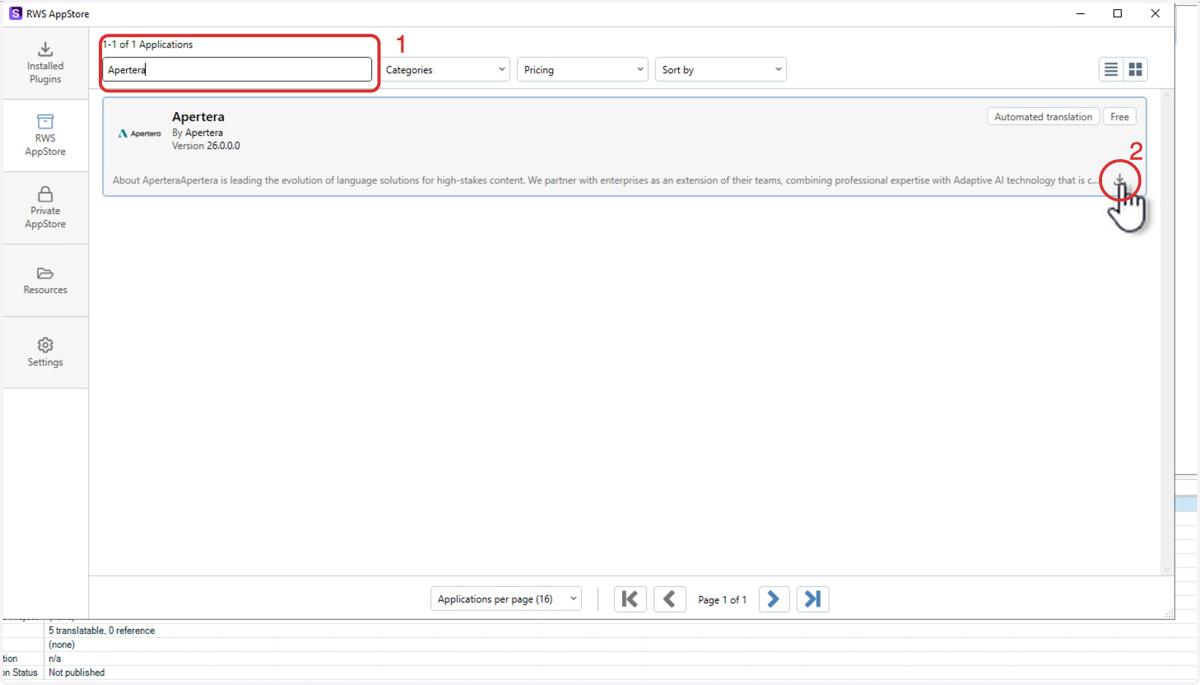
Upon successful installation, you will be prompted to restart Trados Studio. The Apertera plugin will be available for use once the application restarts.Add Apertera to Your Trados Studio Projects
4. Create a new project
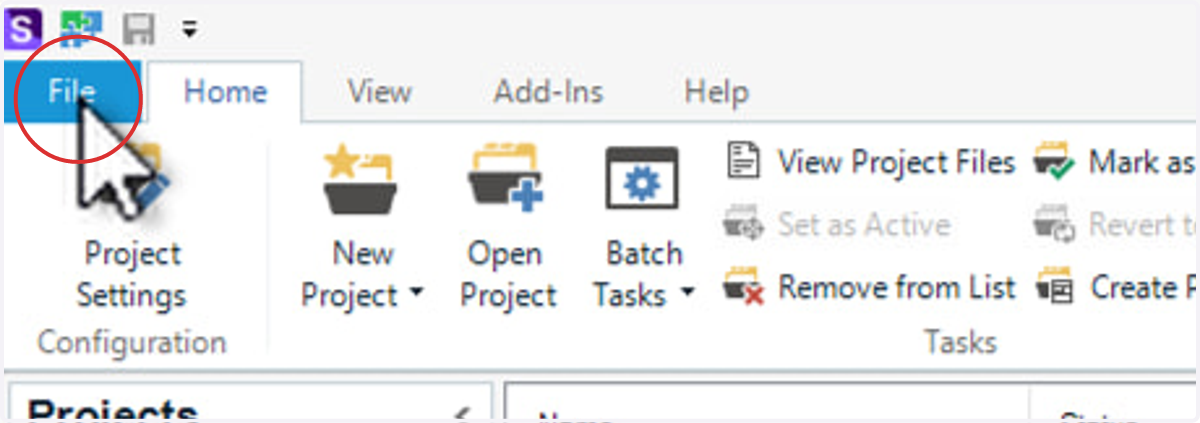
Click File in the top-left corner of Trados Studio.
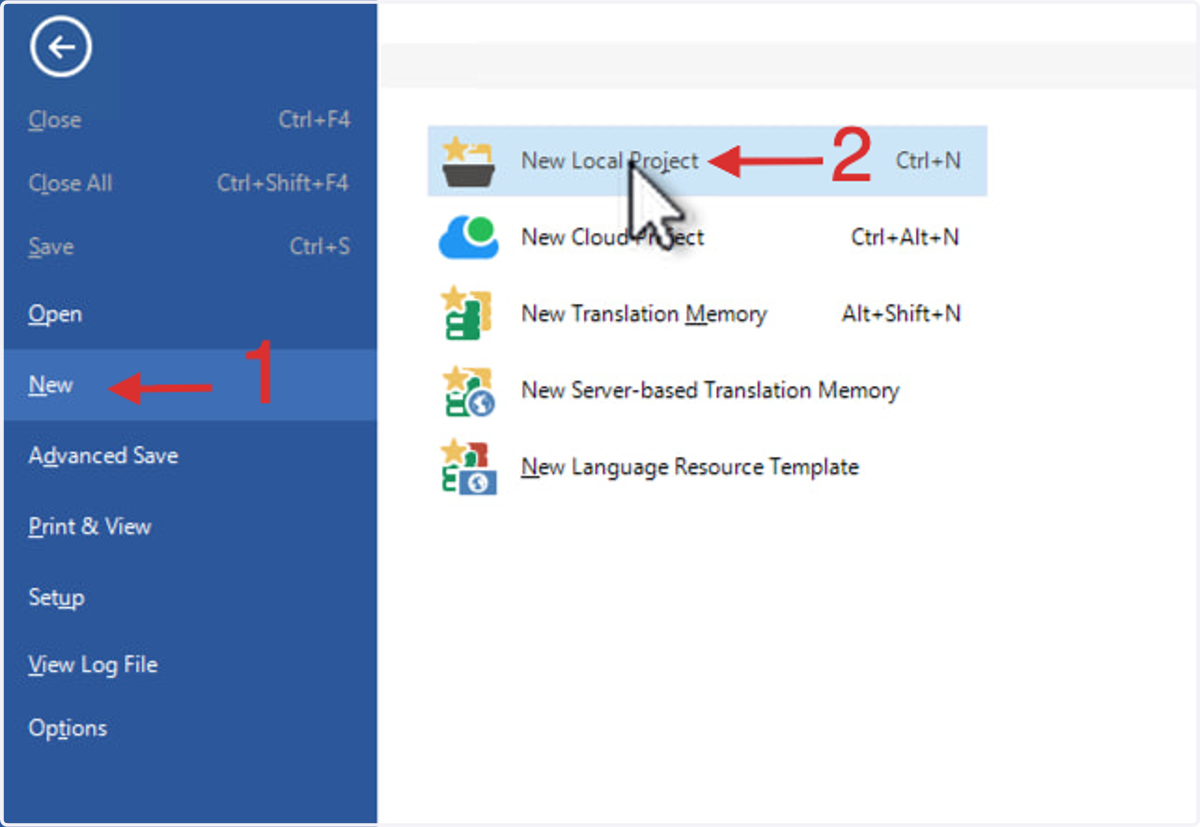
5. Select New, then click New Local Project.
Note: Apertera can also be added to an existing project via Project Settings > Translation Memory and Automated Translation.
6. Configure Project Details
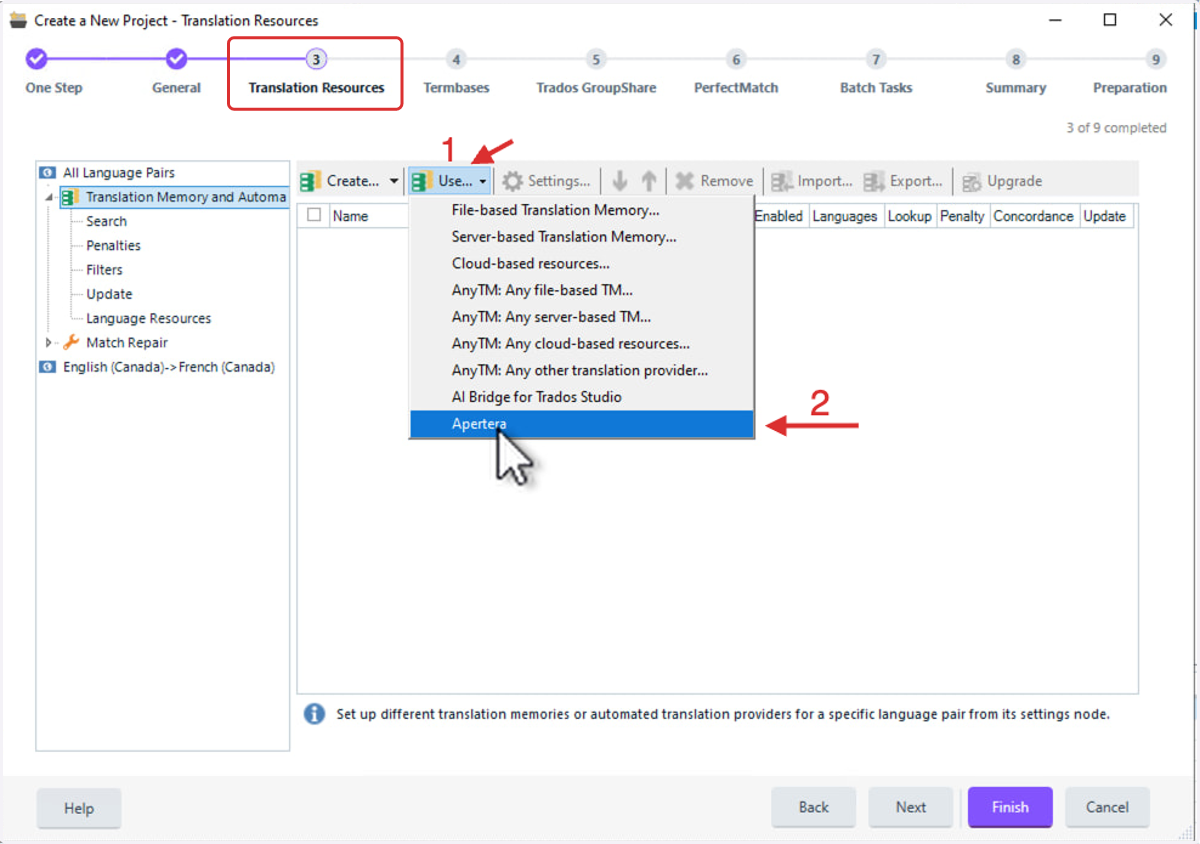
Fill out your standard project details (add your files for translation and select the Source and Target languages).
Navigate to the Translation Memory and Automated Translation (step 3), open the Use... dropdown, and select Apertera.
7. Enter your API Key
Once you fill out the required fields, click Validate authentication.
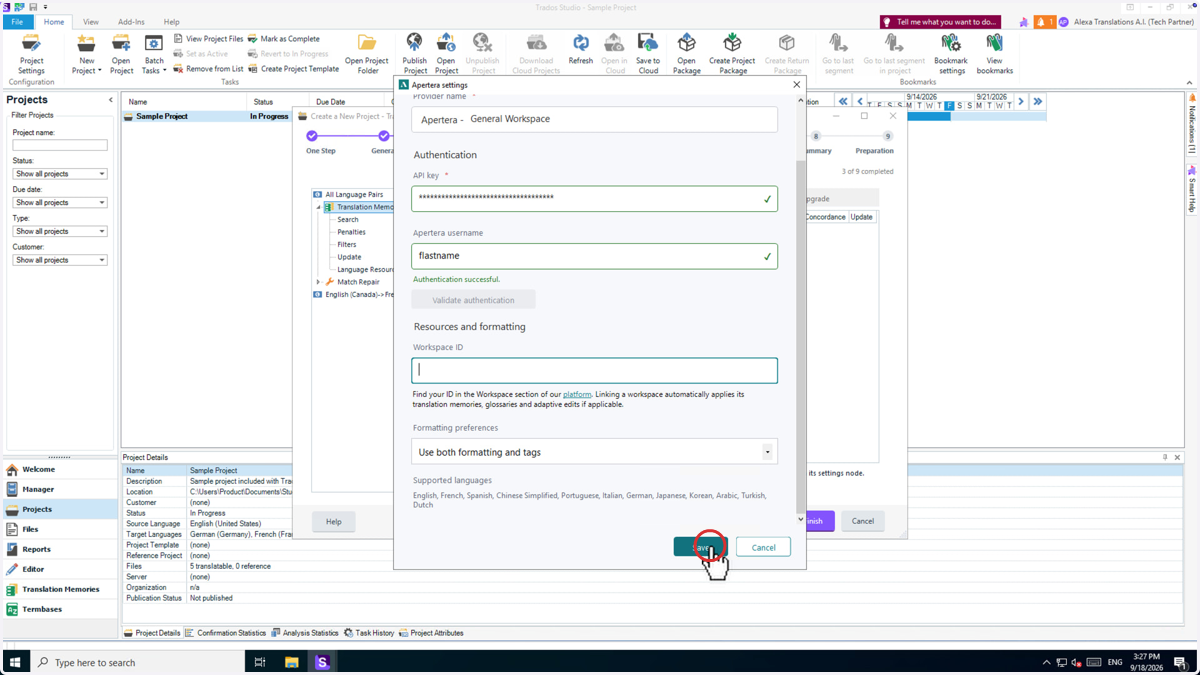
- If successful: You will see a green "Authentication successful" message appear directly in the settings window.
- If unsuccessful: You will see an "Authentication failed, please review credentials" error. If this happens, double-check that your API key and username are typed correctly without any extra spaces.
Note: If you have not received your API key, please reach out to your CSM or email ai_support@apertera.com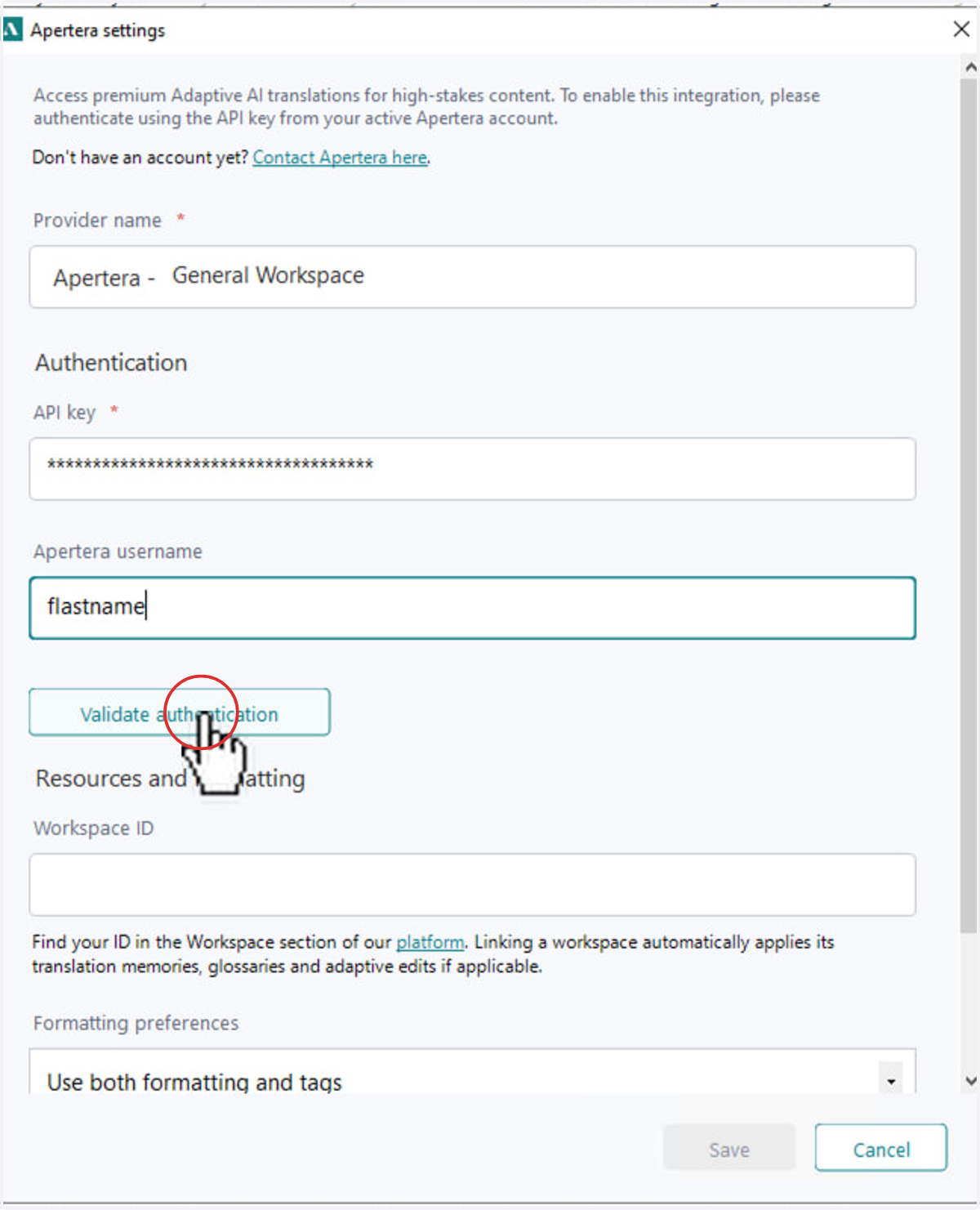
8. Finalize the configuration
To allow the engine to continuously learn from your edited segments and use your specific Apertera configurations paste your Workspace ID into the Workspace ID field.
The Workspace ID field is optional. If left blank, the machine translation results from Apertera will default to come from your General Workspace.
Use the Tags and formatting dropdown to choose how Trados Studio sends the text to Apertera:
- Use plain text only: Processes the text without retaining formatting or tags.
- Use both formatting and tags: Preserves the formatting and tags from your source document.
9. Enable the Apertera profile
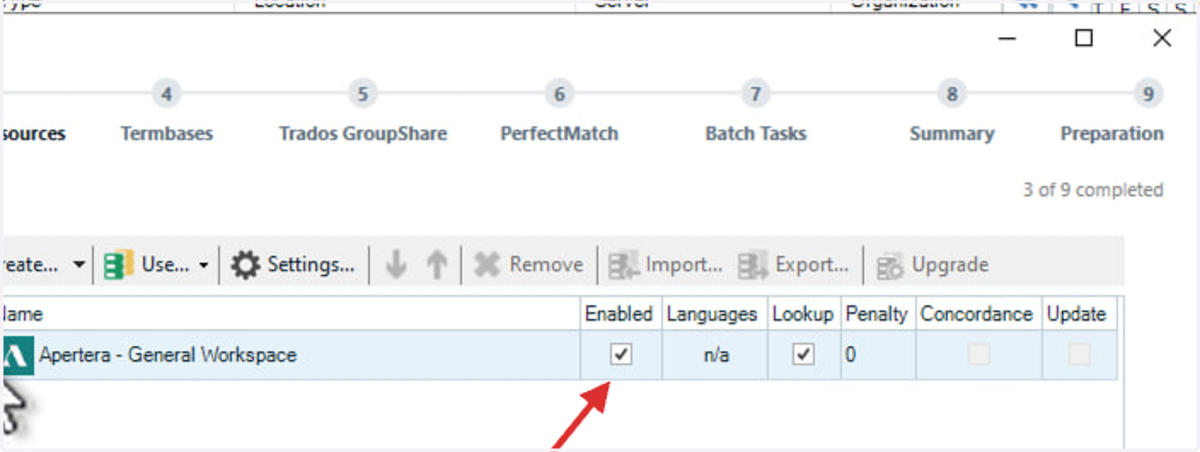
Ensure that the checkbox under Enabled is checked.
Note: If you need to modify your configuration later, select the checkbox next to the Apertera logo and click Settings.
10. Enable Automated Translation in Batch Tasks
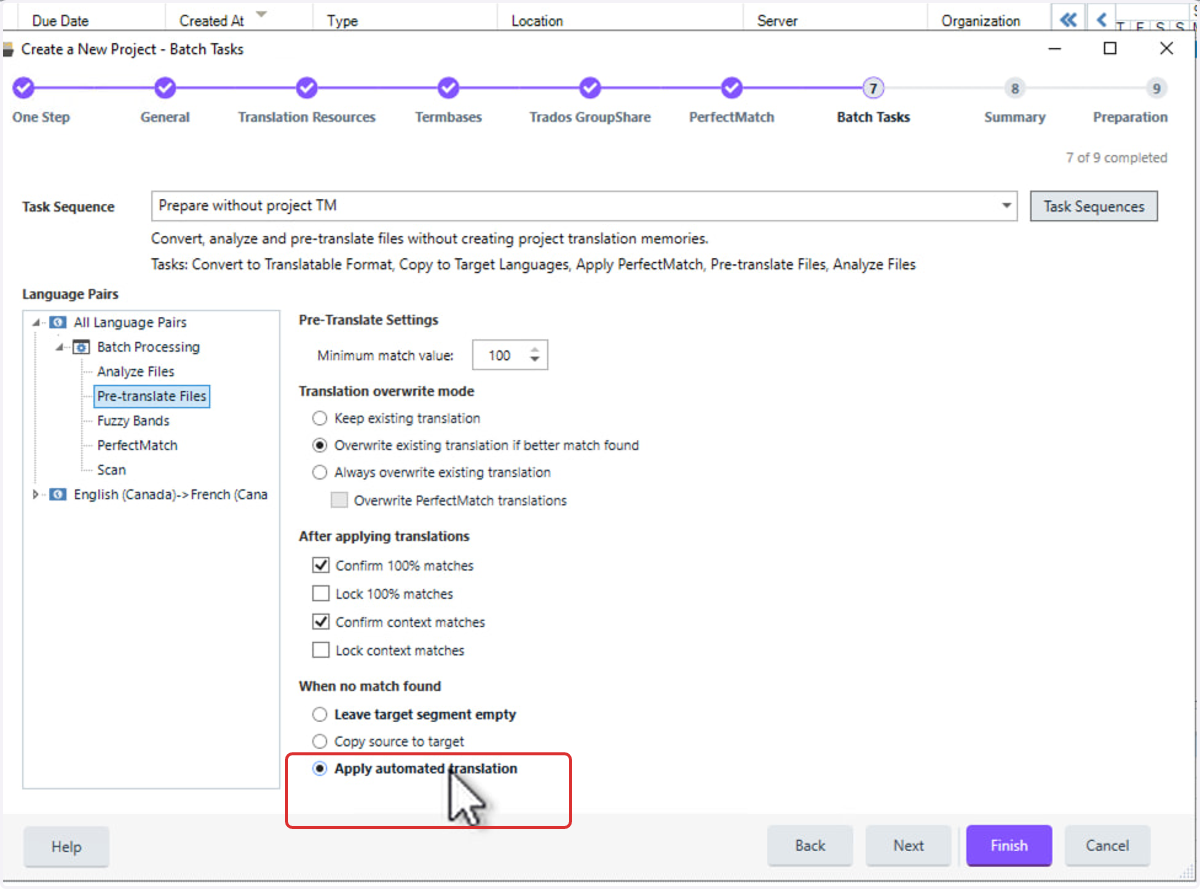
In Step 7 "Batch Tasks", navigate to All Language Pairs > Pre-Translate Files > When no match found and select Apply Automated Translation.
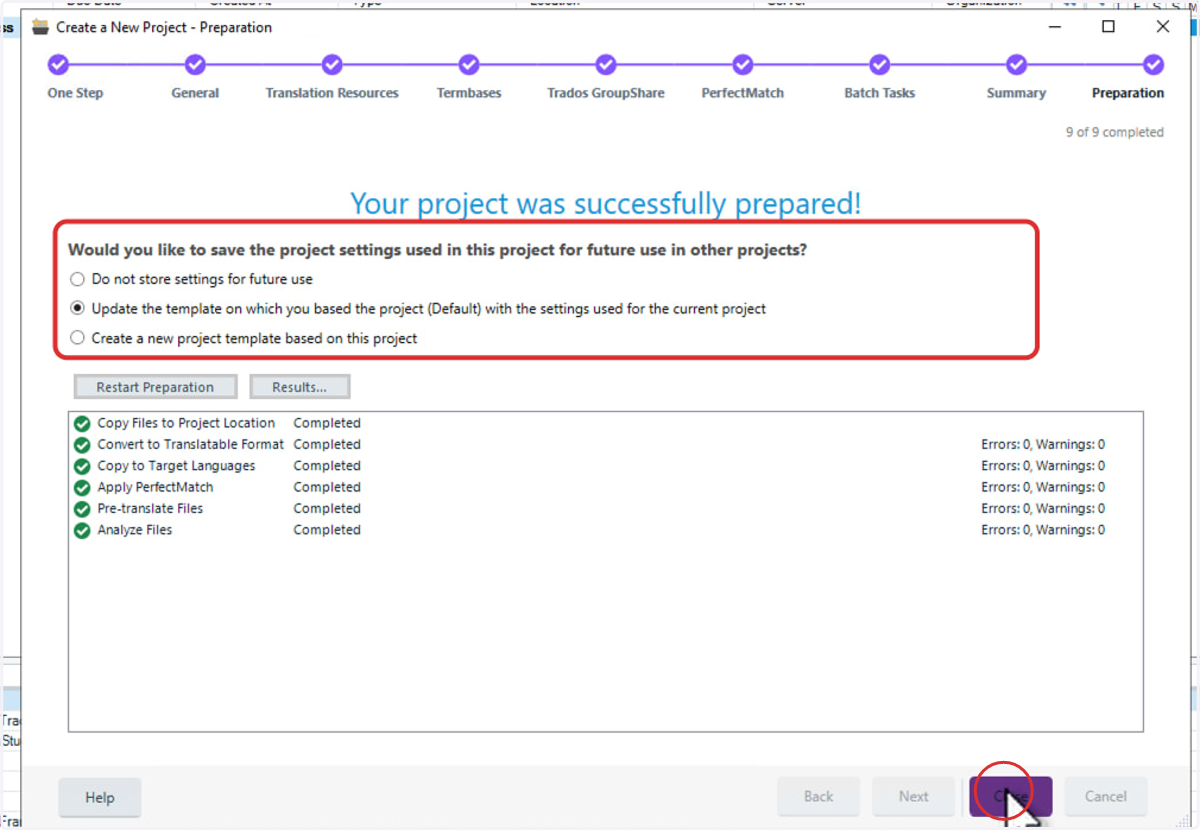
11. Close the project details
Please note that this Automated Translation Provider profile will only be applicable to the project in which it is created, unless you save it to your Project Templates.
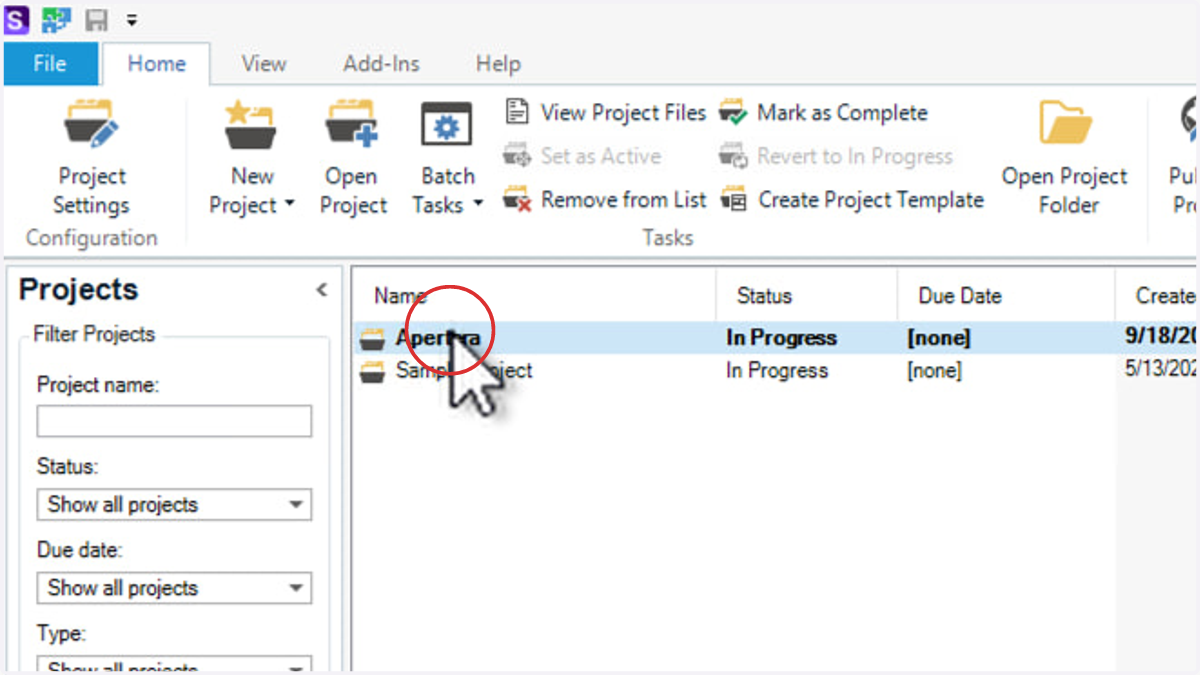
12. Open the new project
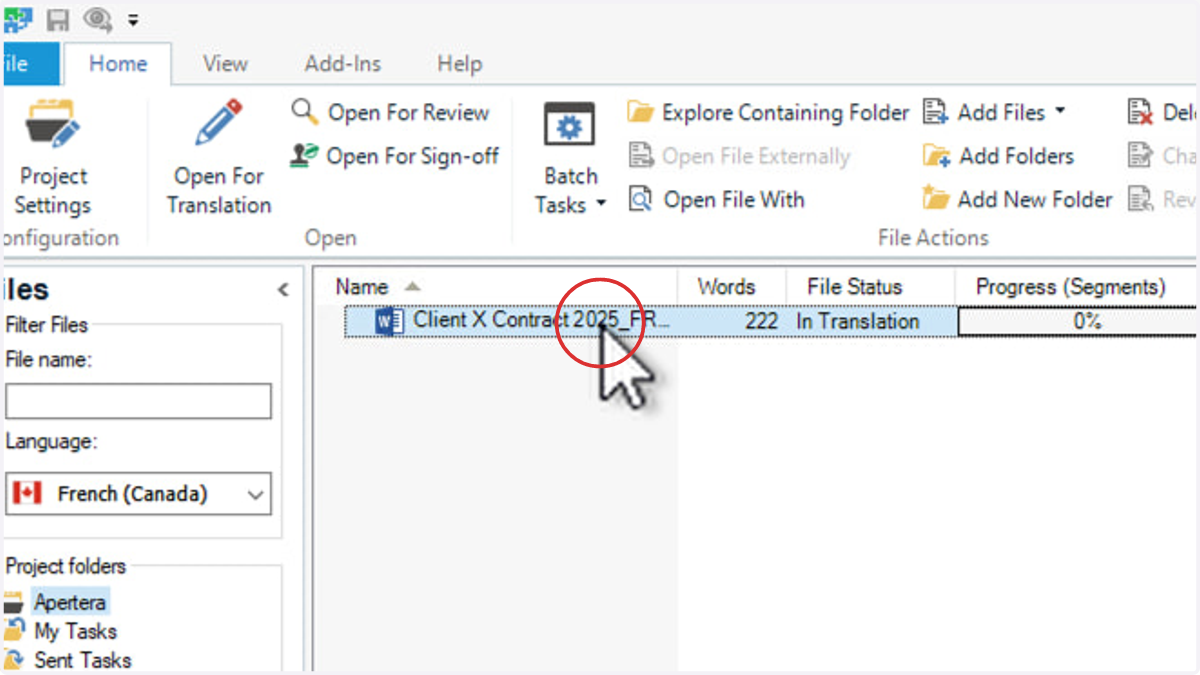
13. Open the translated document
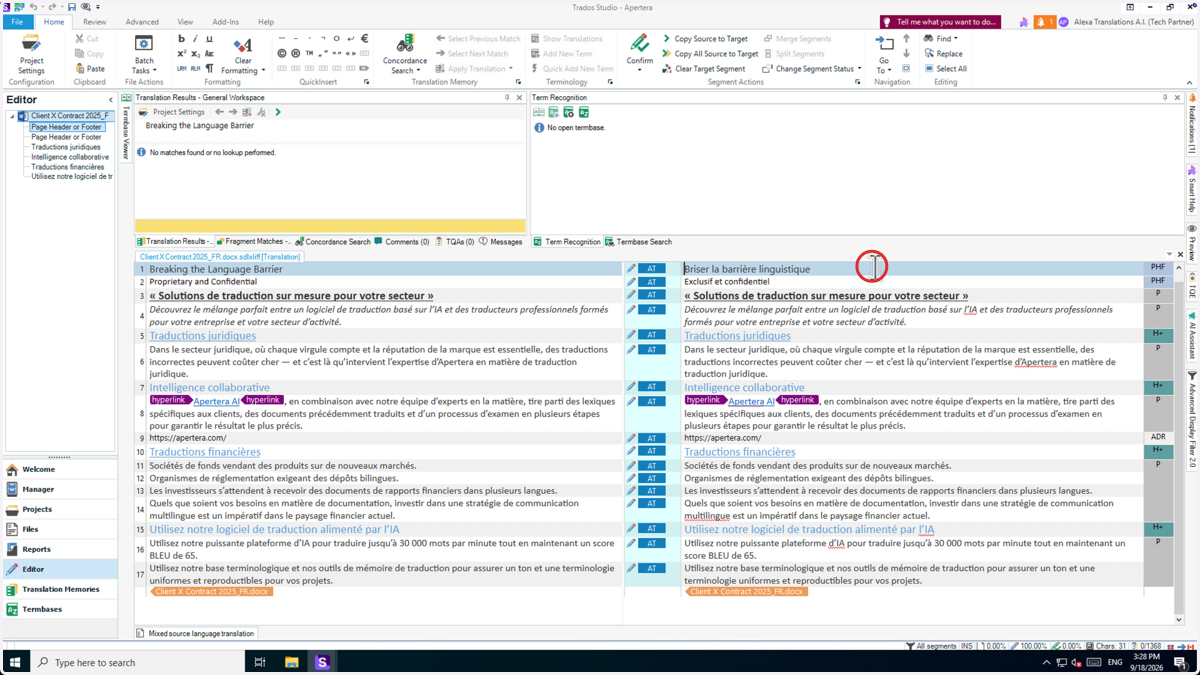
14. All the Segments labeled as "AT" are results from Apertera
Your Apertera Plugin is configured and ready to use. Please contact ai_support@apertera.com if you have any questions or problems with the installation process.